For sellers
Sell AI Prompts on LaPrompt: Monetize Your Creativity
Step-by-step instructions on how to sell AI prompts.
This guide is designed to help you understand the step-by-step process of Prompt Monetization on the LaPrompt platform. Following these instructions will ensure your submissions are successful and meet the standards required by LaPrompt. We have made the submission process smooth and efficient, enabling you to share your creative work with our community. So let us earn money with AI.
Once you click the Create a prompt button, you will be redirected to the Prompt Submission page - Step 1. Here is an explanation of what needs to be done on this page.
Step 1: Prompt details
Choose Your Shop: Select the shop from the list where you want this prompt to be featured. If you only have one shop, or if you start creating a prompt from one of your Shops pages, it will be automatically selected.
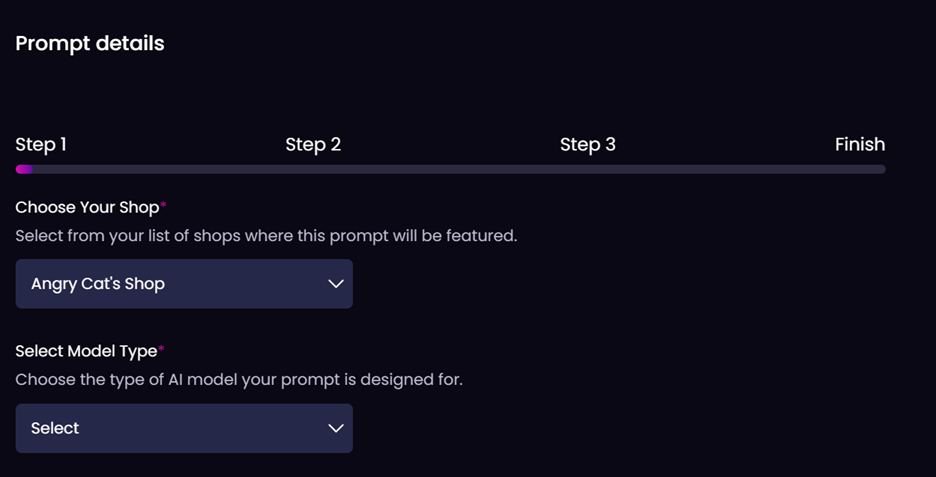
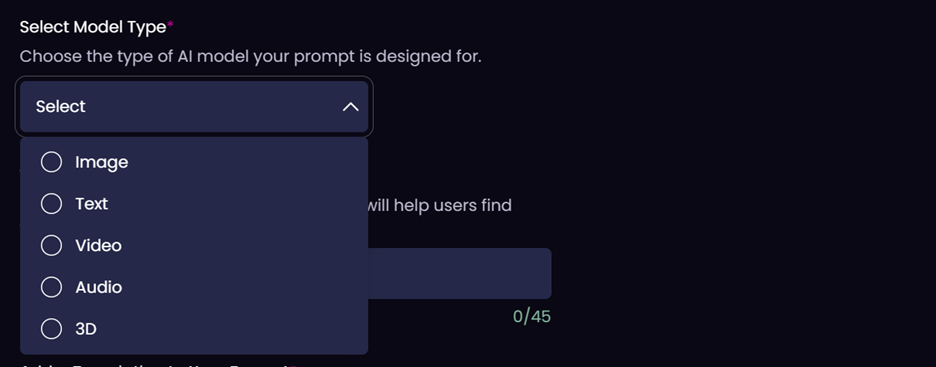
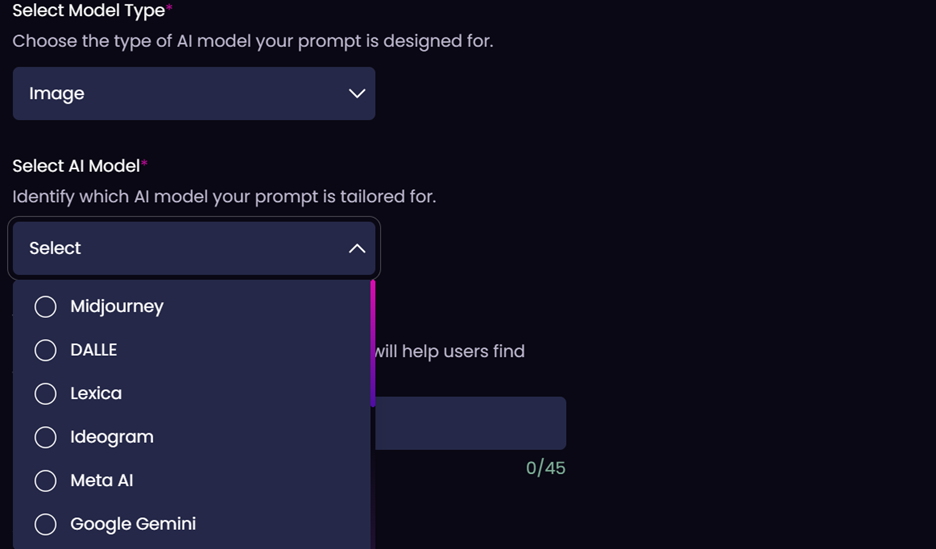
Select Model Type: Choose the type of AI model your prompt is designed for, such as text, image, video, audio, or 3D, depending on what best fits your content. Once AI model type is selected, choose the specific AI model you used for this prompt.
Write Your Prompt Name: Create a catchy and descriptive title for your prompt, up to 45 characters. Ensure it includes key search terms to help users find your prompt easily. For example, "Professional Stock Photo of Nature" or "Cartoon Kids' Book Illustrations" are good prompt names.

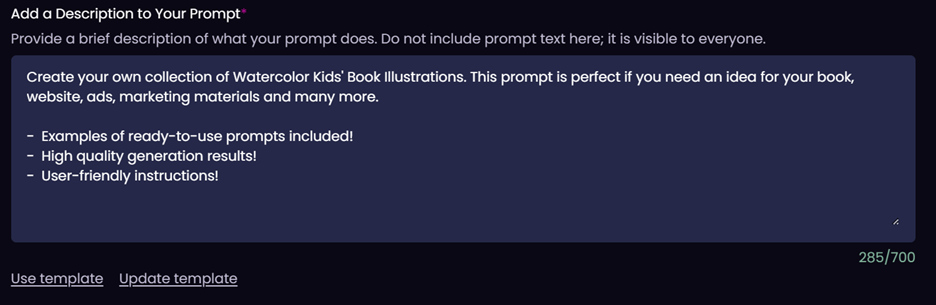
Add a Description to Your Prompt: Provide a concise description, up to 700 characters, of what your prompt does. Do not include the prompt text itself because it is visible to everyone. Consider using a template to save time for future submissions: write the text you want to reuse, click Save template under the text field, and later use that template as a starting point.
- Examples of ready-to-use prompts included.
- High quality generation results.
- User-friendly instructions.
Using this or a similar template helps you save time every time you submit a new prompt.
Select a Price: Set a competitive price for your prompt to attract buyers. This should reflect the quality and potential utility of your prompt.
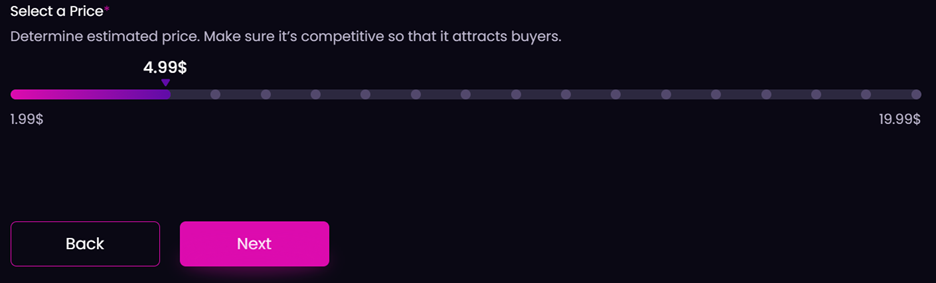
After you are done with everything described above, click Next.
Step 2: Prompt text, examples, and instructions
Depending on the AI model you chose on Step 1, the fields can be different on this step. This guide focuses on image prompts because they make up a large share of LaPrompt submissions.
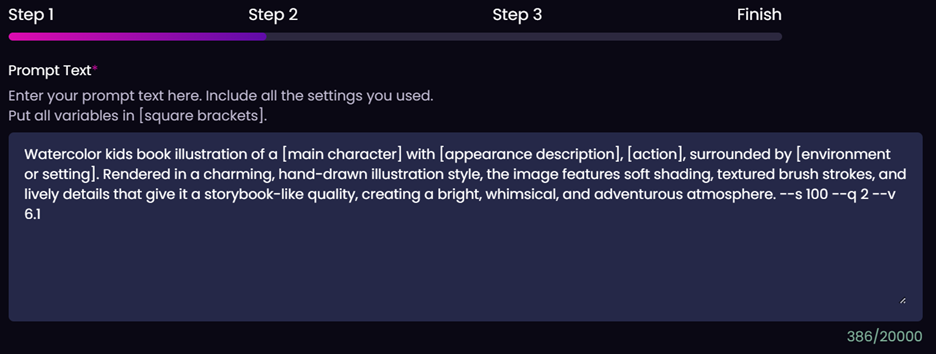
Prompt Text: Input the full text of your prompt, including all specific settings you used. Enclose editable variables within [square brackets] to clarify buyer-editable elements. This should work like a template with variables in square brackets. It is better to replace specific words with broader notions: cat, dog, or tiger can become [animal]; girl or boy can become [character].
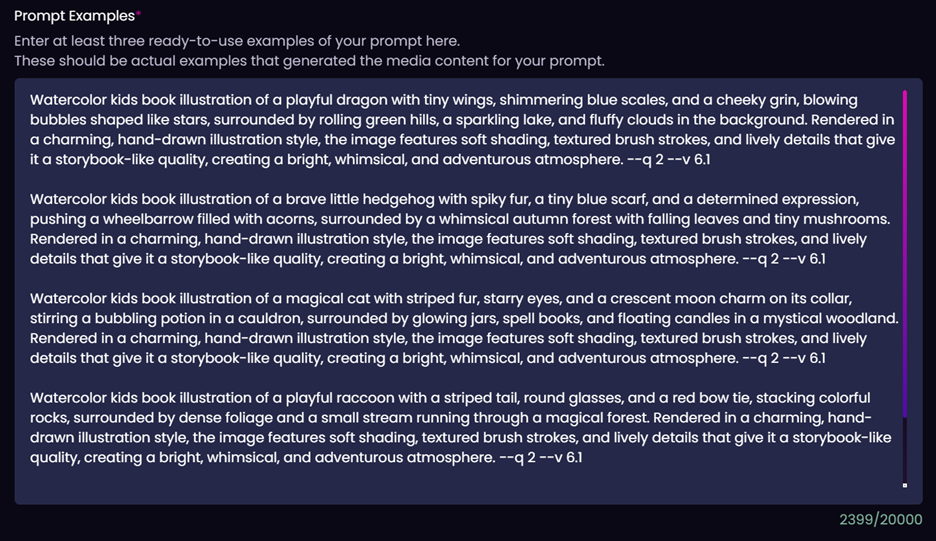
Prompt Examples: Provide at least 3 examples of your actual prompt that you used to generate images, videos, 3D models, audio, or other outputs. More examples are better, because buyers can use them to generate similar content. One example may be used by the LaPrompt team to test and validate your prompt.
Model-Specific Settings: Depending on the selected AI model, you may need to specify additional settings. For example, if Midjourney was selected in the previous step, you may need to choose the version, whether Raw mode was enabled, and the stylization value.
Prompt Instructions: Clearly list the steps or guidelines users should follow to effectively use your prompt. This field can also be saved as a template for future prompt submissions.
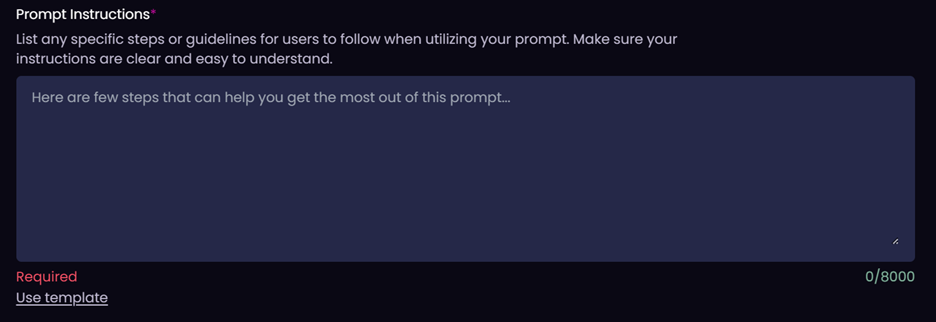
List of variables:
[color] - red, blue, silver, golden, etc.
[subject] - wolf, eagle, tiger, elephant, fox, etc.
In the example below, an existing template was reused and only the variable list was changed to correspond to the current prompt.
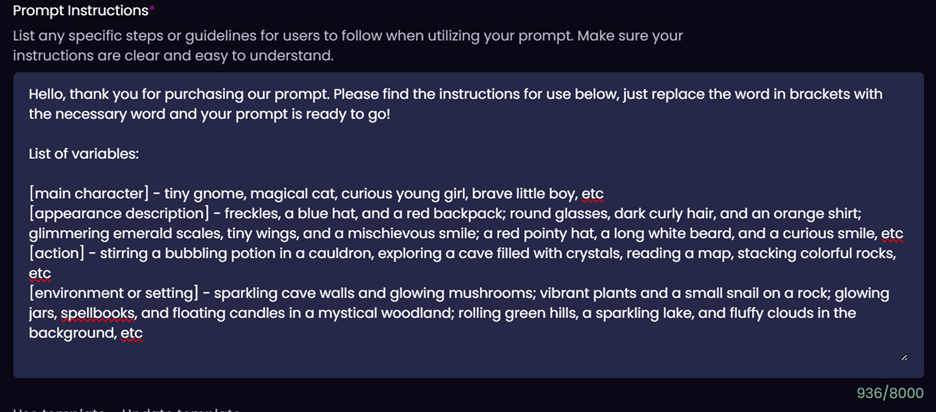
Once you have filled in all necessary fields, click Next to proceed to Step 3.
Step 3: Examples, thumbnails, category, subcategory, and tags
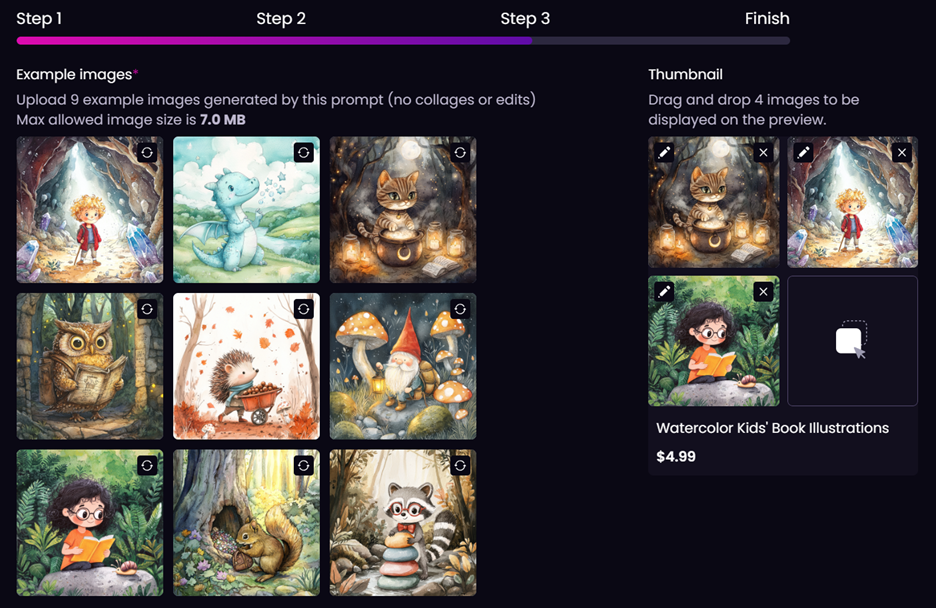
Example Images: Upload 9 example images generated with this prompt. These images must be direct outputs with no collages or edits. If you submit a video prompt, 3 video examples are required here.
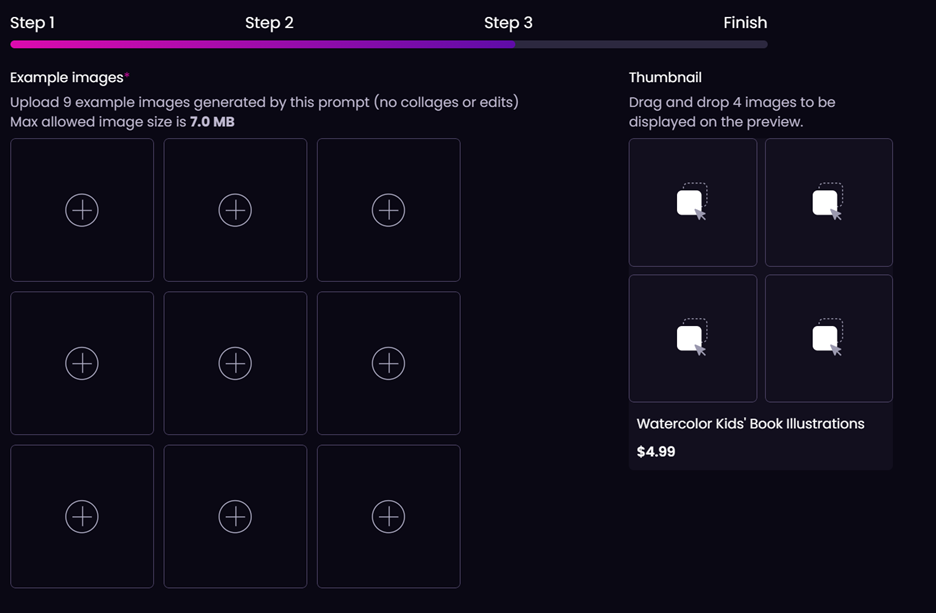
Thumbnail: For image prompts, drag and drop 4 images that will be displayed in the prompt preview. For video prompts, select one video to serve as the thumbnail. If you do not choose thumbnail media, the first 4 images or the first video will be used for the preview.
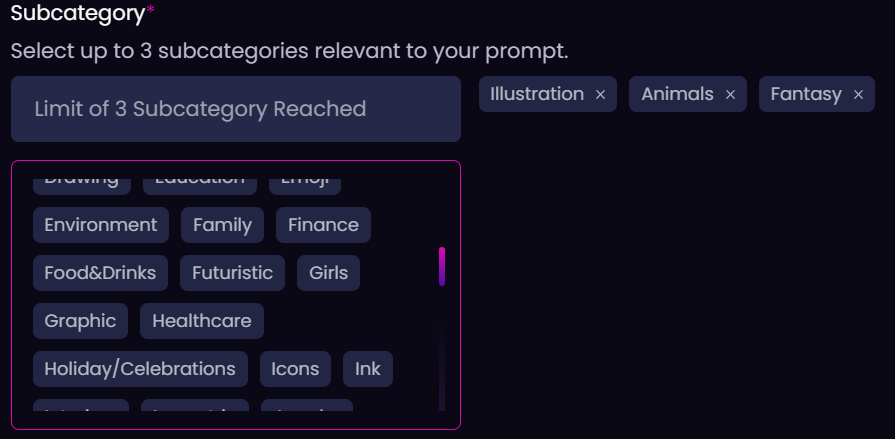
Category and Subcategory: Select the most appropriate category and up to three subcategories for your prompt. This helps categorize your prompt correctly, although adjustments can be made during the review process. In the example below, the prompt uses a kids illustration theme.

Tags: Add tags that best describe your prompt, such as "cat" or "girl". Tags help potential buyers find your prompt. You can select existing tags or suggest new ones, which will be reviewed for approval. Tags can describe subjects, styles, or characteristics such as "minimalist", "abstract", or "studio background".
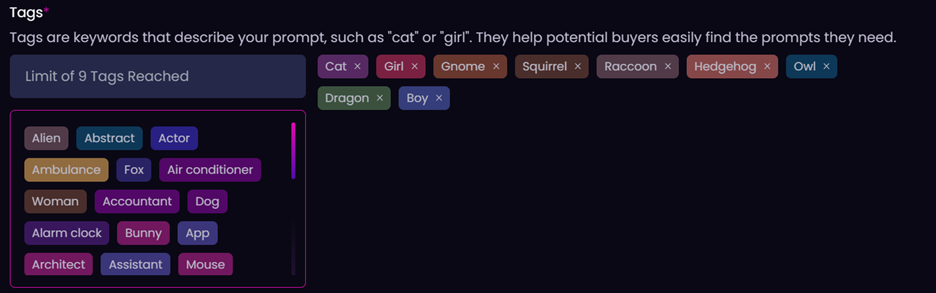
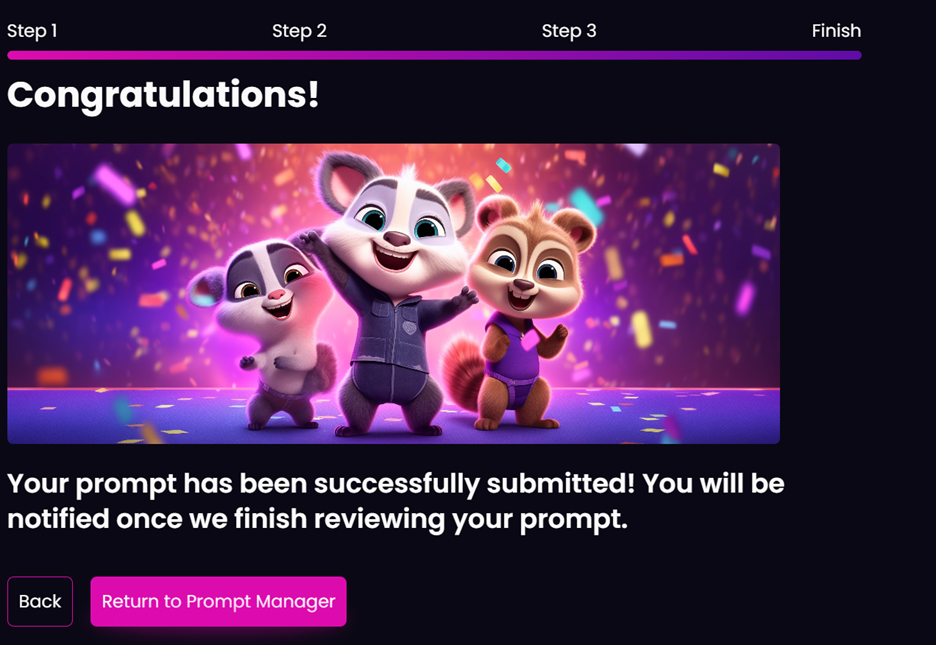
Once you are done with the tags, make sure all fields are completed and click Finish. You will be redirected to the confirmation screen that your prompt was successfully submitted.
This is how the prompt looks in your Prompt Manager after submission. You can see the name, description, all 9 images in a collage, category, subcategories, tags, prompt text, instructions, and other fields.
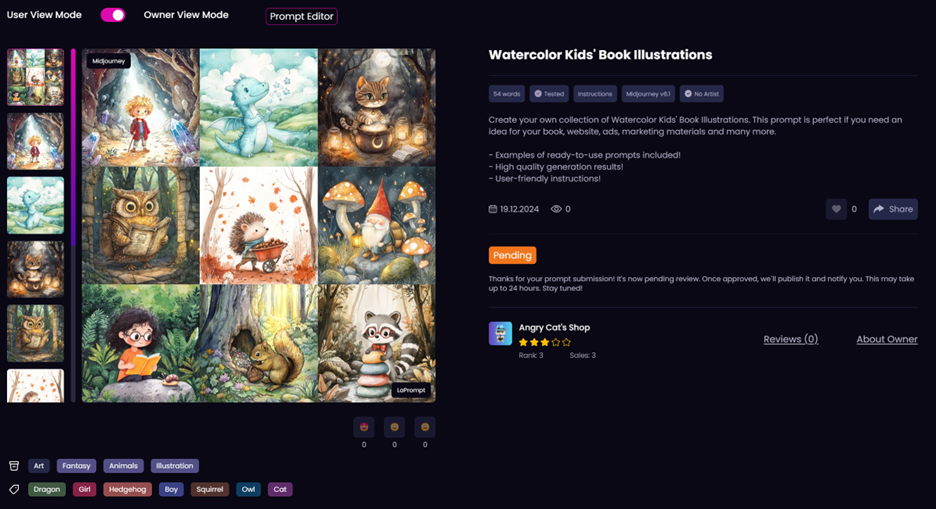
You can also see that the status is pending, which means it has not been reviewed yet. Once our team reviews your prompt, it will either be approved, which means it is published in the prompt market, or declined, in which case we indicate the rejection reason. We encourage you to make the necessary changes and resubmit your prompt.
Frequently Asked Questions
- What is AI prompt monetization?
- How can I earn money with AI prompts?
- Can I sell prompts for Sora?
- Can I sell prompts for Midjourney?
- Can I sell prompts for Ideogram?
- Can I sell prompts for Kling?
- Why should I choose LaPrompt to sell AI prompts?
Visit our FAQ page for more details.